Camera setup
Cameras configured to output H.264 video and AAC audio will offer the most compatibility with all features of Frigate and Home Assistant. H.265 has better compression, but less compatibility. Firefox 134+/136+/137+ (Windows/Mac/Linux & Android), Chrome 108+, Safari and Edge are the only browsers able to play H.265 and only support a limited number of H.265 profiles. Ideally, cameras should be configured directly for the desired resolutions and frame rates you want to use in Frigate. Reducing frame rates within Frigate will waste CPU resources decoding extra frames that are discarded. There are three different goals that you want to tune your stream configurations around.
-
Detection: This is the only stream that Frigate will decode for processing. Also, this is the stream where snapshots will be generated from. The resolution for detection should be tuned for the size of the objects you want to detect. See Choosing a detect resolution for more details. The default frame rate of 5fps is correct for almost all cameras and rarely needs to be changed; see Choosing a detect frame rate. Higher resolutions and frame rates will drive higher CPU usage on your server.
-
Recording: This stream should be the resolution you wish to store for reference. Typically, this will be the highest resolution your camera supports. I recommend setting this feed in your camera's firmware to 15 fps.
-
Stream Viewing: This stream will be rebroadcast as is to Home Assistant for viewing with the stream component. Setting this resolution too high will use significant bandwidth when viewing streams in Home Assistant, and they may not load reliably over slower connections.
For the best experience in Frigate's UI, configure your camera so that the detection and recording streams use the same aspect ratio. For example, if your main stream is 3840x2160 (16:9), set your substream to 640x360 (also 16:9) instead of 640x480 (4:3). While not strictly required, matching aspect ratios helps ensure seamless live stream display and preview/recordings playback.
Choosing a detect resolution
The ideal resolution for detection is one where the objects you want to detect fit inside the dimensions of the model used by Frigate (320x320). Frigate does not pass the entire camera frame to object detection. It will crop an area of motion from the full frame and look in that portion of the frame. If the area being inspected is larger than 320x320, Frigate must resize it before running object detection. Higher resolutions do not improve the detection accuracy because the additional detail is lost in the resize. Below you can see a reference for how large a 320x320 area is against common resolutions.
Larger resolutions do improve performance if the objects are very small in the frame.
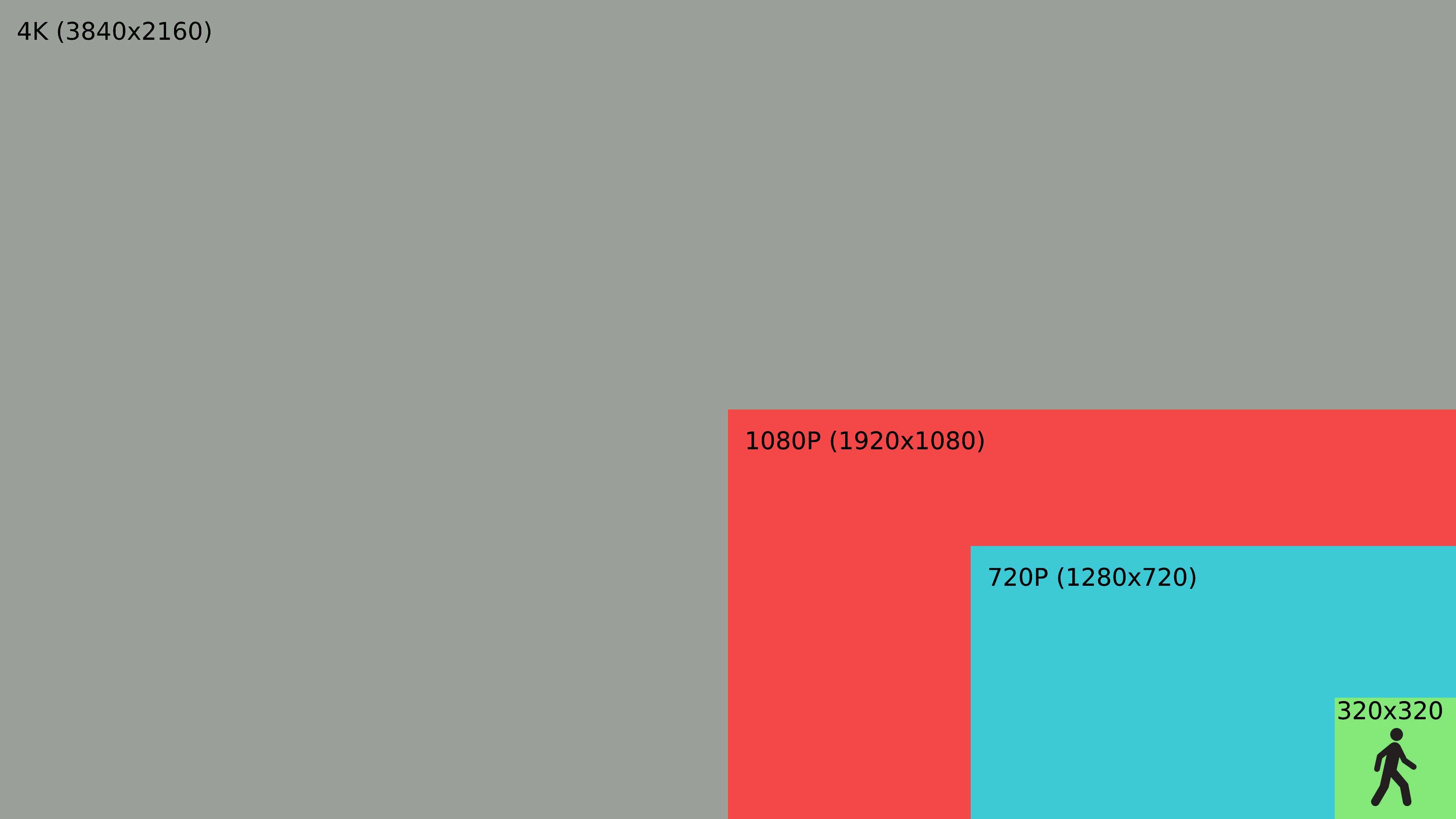
Choosing a detect frame rate
detect.fps controls how many times per second Frigate runs object detection. It does not need to match your camera's frame rate. The default of 5 is correct for the vast majority of cameras.
Most users who raise detect.fps above the default don't need to. Increasing it consumes more CPU/GPU (detection load scales directly with the frame rate) while providing no benefit to tracking once objects are already being followed smoothly. Leave it at 5 unless you have a specific scene that fails the test below, and confirm any change actually helps in the debug view.
Why 5 is enough for almost everyone
Frigate follows an object by matching its bounding box from one detection frame to the next, which requires the object to be detected often enough while it is on screen. At 5 fps this is satisfied in normal scenes: an object crossing a yard, porch, driveway, or walkway is in view for several seconds and produces ~15 or more detections, which is more than enough for a reliable track and a good snapshot. This includes fast subjects such as a running person or a bolting pet, which on a wide-angle view remain on screen for several seconds.
A higher rate helps only when an object crosses the entire frame in less than two seconds, which is determined by camera framing rather than object speed - for example, a camera aimed down a street at fast cross-traffic. In those scenes 5 fps may produce too few detections to hold a track. Cameras covering normal approaches and open areas are unaffected.
Checking whether a higher rate is needed
Estimate how long an object is visible as it crosses the area of interest, aiming for roughly 8–10 detections during the pass:
detect.fps≈ 10 ÷ (seconds the object is in view)
Most objects (people walking or running, pets, and vehicles in a yard, driveway, or walkway) stay in view for two seconds or more, so the default of 5 fps is correct. Slowly try raising it to 10 (the recommended maximum) in increments only when objects routinely cross the entire frame in about a second, such as a camera aimed at a street or sidewalk with fast cross-traffic. Objects that transit in under a second cannot be tracked reliably at any practical rate, so reposition the camera instead.
If the formula calls for more than 10, the fix is camera placement, not frame rate. Angle the camera so objects move toward it rather than across the view, or aim it where traffic slows. A higher detect.fps increases CPU load proportionally without producing more detections of a too-brief object.
Verify in the debug view
Confirm any change in the Debug view or Debug Replay. Watch a typical object cross the scene: if its bounding box follows it smoothly while visible, the rate is sufficient. A box that jumps erratically, drops out, or splits one object into multiple events indicates the rate should be increased one step.
Dedicated LPR cameras
A dedicated license plate recognition camera is the most common reason to use something higher than 5 fps: the camera is highly zoomed, the plate is small, and it moves at full vehicle speed, so it transits the frame quickly. However, the same ceiling applies: above 10 fps is unnecessary, and placement matters most: aim LPR cameras where vehicles slow down, such as gates, driveways, and parking entrances. A tight view of a fast through-road will not likely read plates reliably at any frame rate. See License Plate Recognition for details.
Example Camera Configuration
For the Dahua/Loryta 5442 camera, I use the following settings:
Main Stream (Recording & RTSP)
- Encode Mode: H.264
- Resolution: 2688*1520
- Frame Rate(FPS): 15
- I Frame Interval: 30 (15 can also be used to prioritize streaming performance - see the camera settings recommendations for more info)
Sub Stream (Detection)
- Enable: Sub Stream 2
- Encode Mode: H.264
- Resolution: 1280*720
- Frame Rate: 5
- I Frame Interval: 5